This is How We Do It: How to establish a wireless connection between your Android device and the PC via FTP

This is How We Do It: How to establish a wireless connection between your Android device and the PC via FTP wireless FTP Android

With the introduction of wireless technology, it has become a trend these days. When there is no use of wires while charging why to use wires for file transfer? This week we will tell you how to use FTP for file transfer on your Android. So lets begin

  1. Download the ‘FileZilla’ FTP client for your PC or any other you like. I personally use FileZilla so I suggest that.
  2. Download Any FTP client like symFTP, SolidFTP or just use ES file explorer for your android. I will be using ES file explorer in this tutorial.
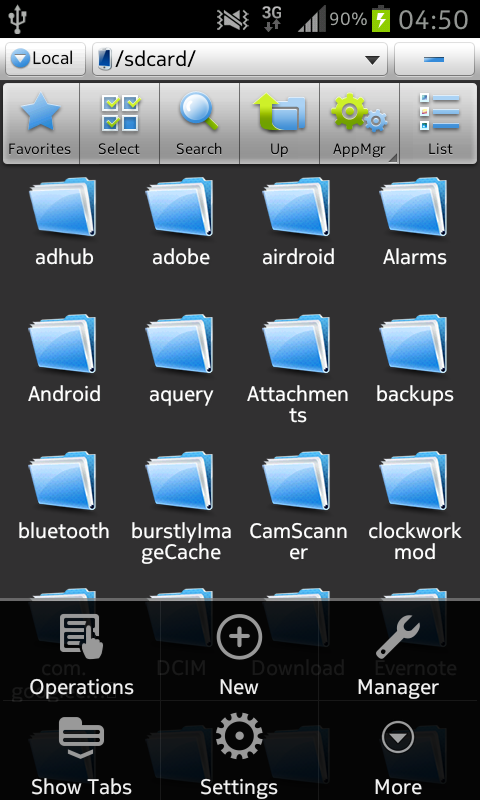
  3. Open ES file explorer and go to settings.This is How We Do It: How to establish a wireless connection between your Android device and the PC via FTP wireless FTP Android
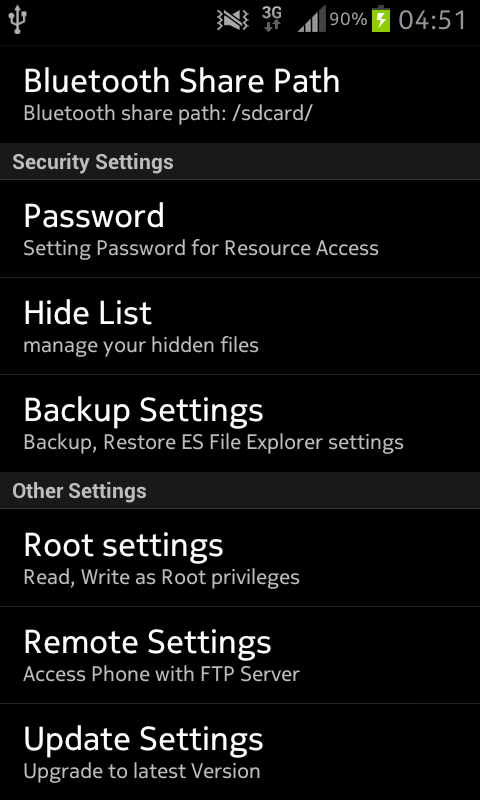
  4. Scroll down and enable remote settings.This is How We Do It: How to establish a wireless connection between your Android device and the PC via FTP wireless FTP Android
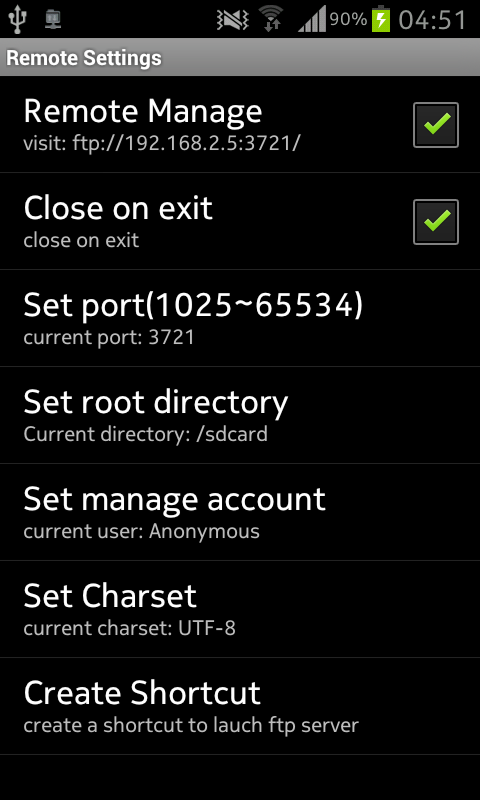
  5. Note the FTP address and the port number that just appearedThis is How We Do It: How to establish a wireless connection between your Android device and the PC via FTP wireless FTP Android .
  6. Launch Filezilla on the pc.
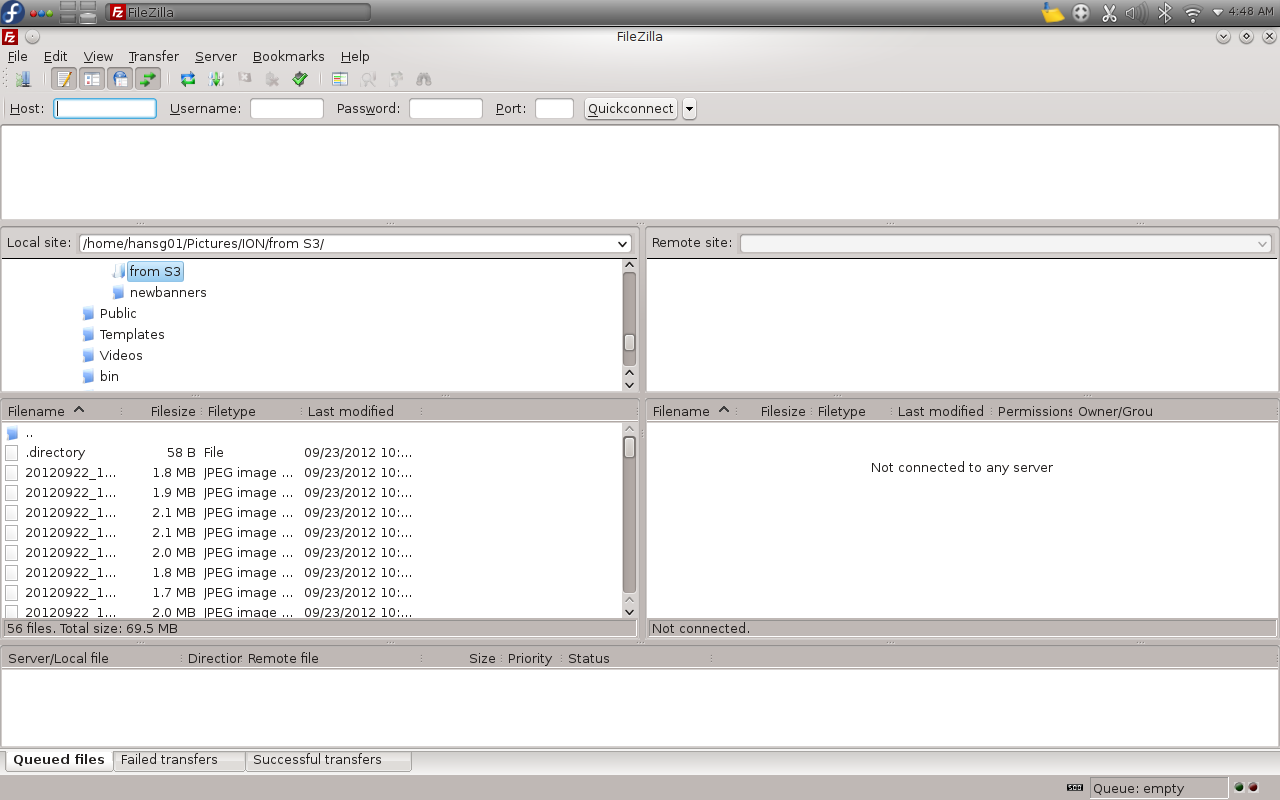
  7. Enter the ftp address, just the address in the host field on the top and proxy number which is 3721 by default in case of ES file explorer.This is How We Do It: How to establish a wireless connection between your Android device and the PC via FTP wireless FTP Android
  8. Click on connect and its done.
Related Posts:

Posted under: Editorial, This is how we do it

Tagged as: , ,

About Hans Gogia

Hans is a linux geek and an open source enthusiast, trying to shift to FOSS. He is a CS undergraduate, a programmer who recently got into android.

Leave a Reply

Your email address will not be published. Required fields are marked *

You may use these HTML tags and attributes: <a href="" title=""> <abbr title=""> <acronym title=""> <b> <blockquote cite=""> <cite> <code> <del datetime=""> <em> <i> <q cite=""> <strike> <strong>